
Tracking statuses
Each player on your list shows one of these statuses in/track list and on the dashboard.
Paused players stay on your track list and still count toward your 50-player limit.
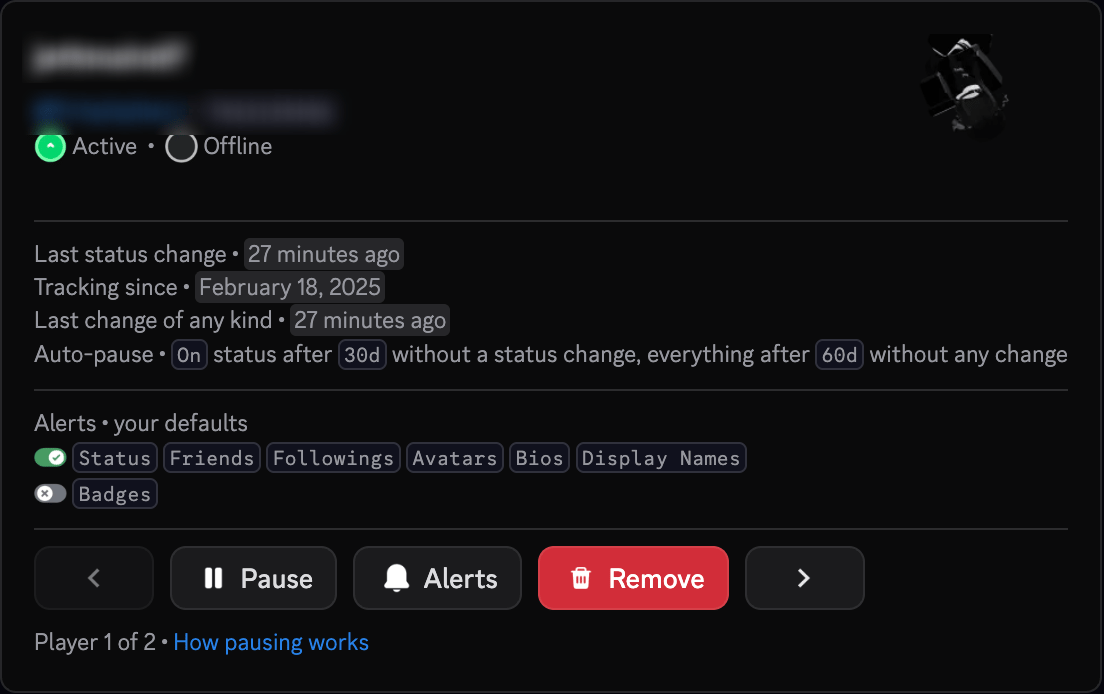
Per-player alerts
Your notification settings are your defaults. Every player uses them until you choose different alerts for that player. To change one player:- Run
/track listand open the player, or run/track settings target:and pick them from the list. - Press Alerts and choose the alerts you want for that player.
- Press Reset to defaults at any time to go back to your defaults.
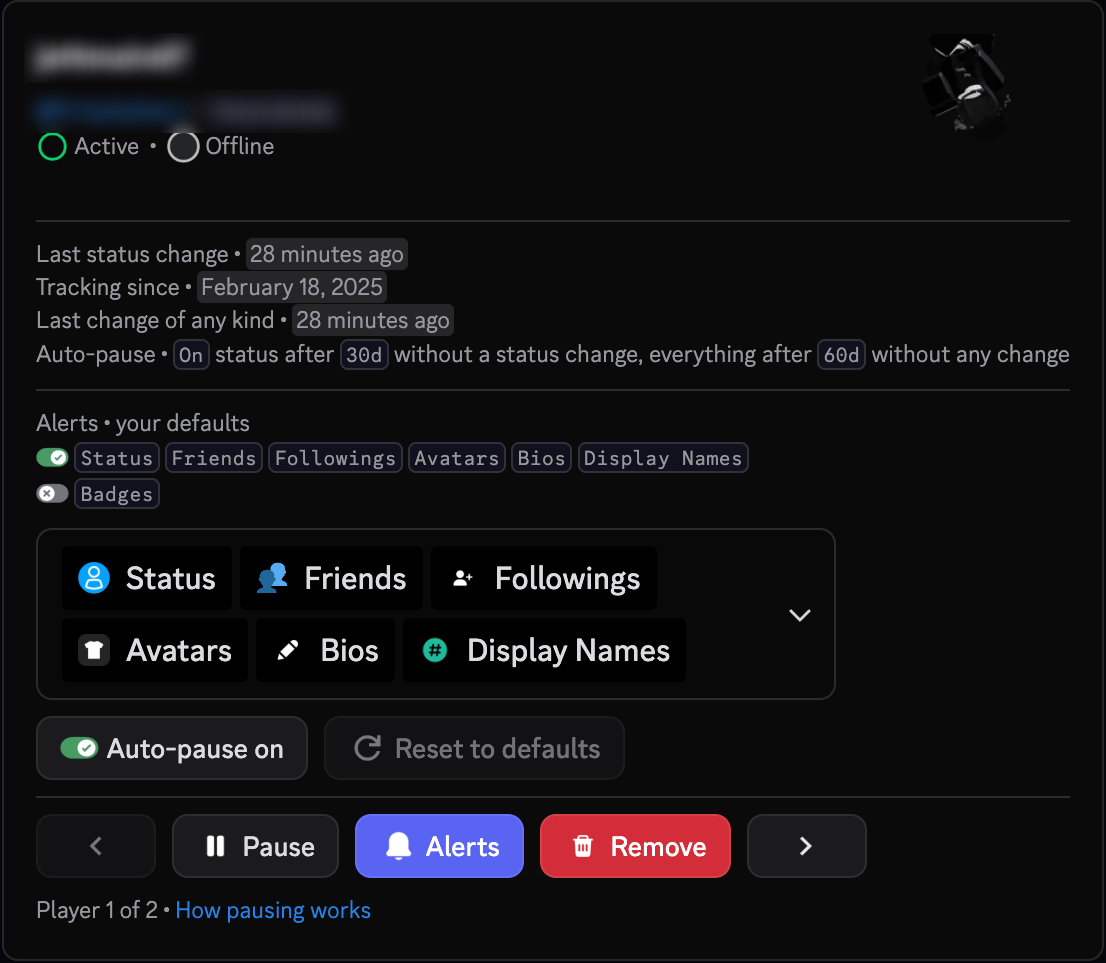
If you change your defaults later, any alert you haven’t set for a specific player follows the new default.
Pausing and resuming
Resuming turns every alert back on, status included, and restarts the auto-pause timers for that player.
Auto-pause
Bloxiana checks once a day for players who have gone quiet. It works in two steps.1
30 days without a status change: status paused
If a player hasn’t gone online, joined a game or opened Roblox Studio for 30 days, their status alerts are paused. Badges, avatars, bios, display names, friends and followings keep coming as normal.
2
60 days without any change: fully paused
If nothing at all has changed for 60 days (no status change, new badge, avatar change, bio or display name change), the player is fully paused and you get no alerts for them until you resume.
/track list, press Alerts, then press Auto-pause. You can also use the Auto-pause when inactive switch on the dashboard.
The daily pause message
Every day at 00:00 UTC, Bloxiana sends you one DM listing the players that were paused since the last message. Each player is only included once, so you won’t be told about the same pause twice. The message has a Status paused section and a Fully paused section. Pick players from the Resume tracking for… menu to resume them straight from your DMs.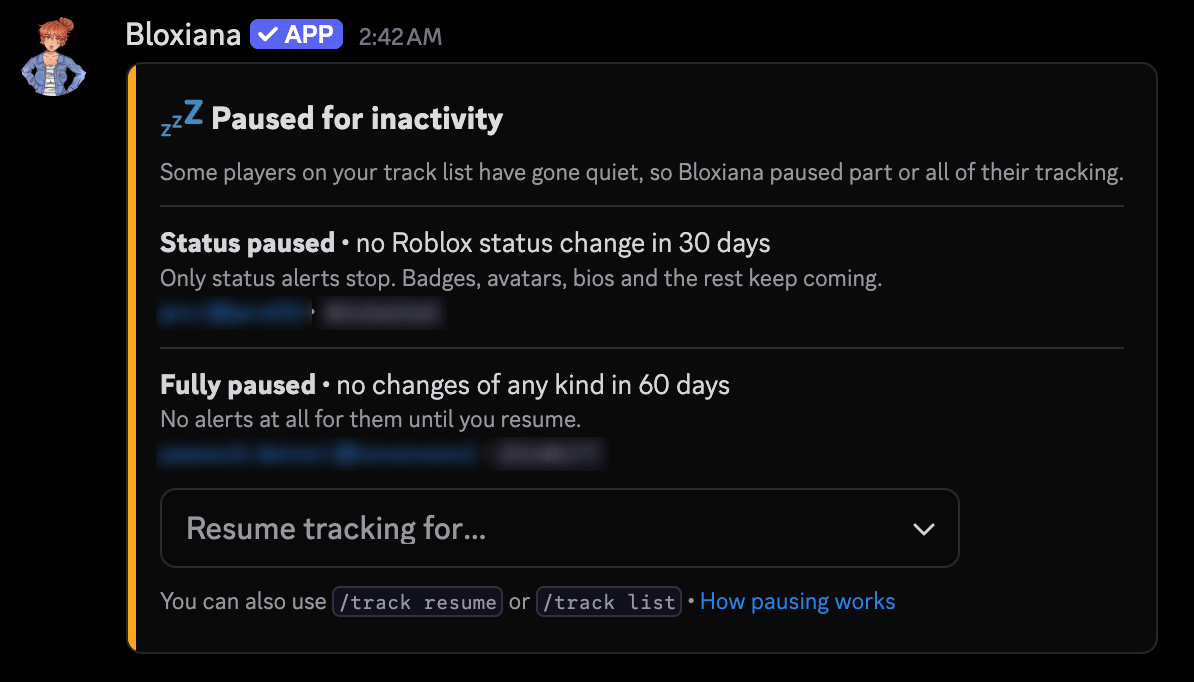
The message is a DM, so make sure Bloxiana can message you. If your DMs are closed, players are still paused and show up as paused in
/track list.